

Step 1: Go to Products
From the left sidebar, click Products.
Select Add New.
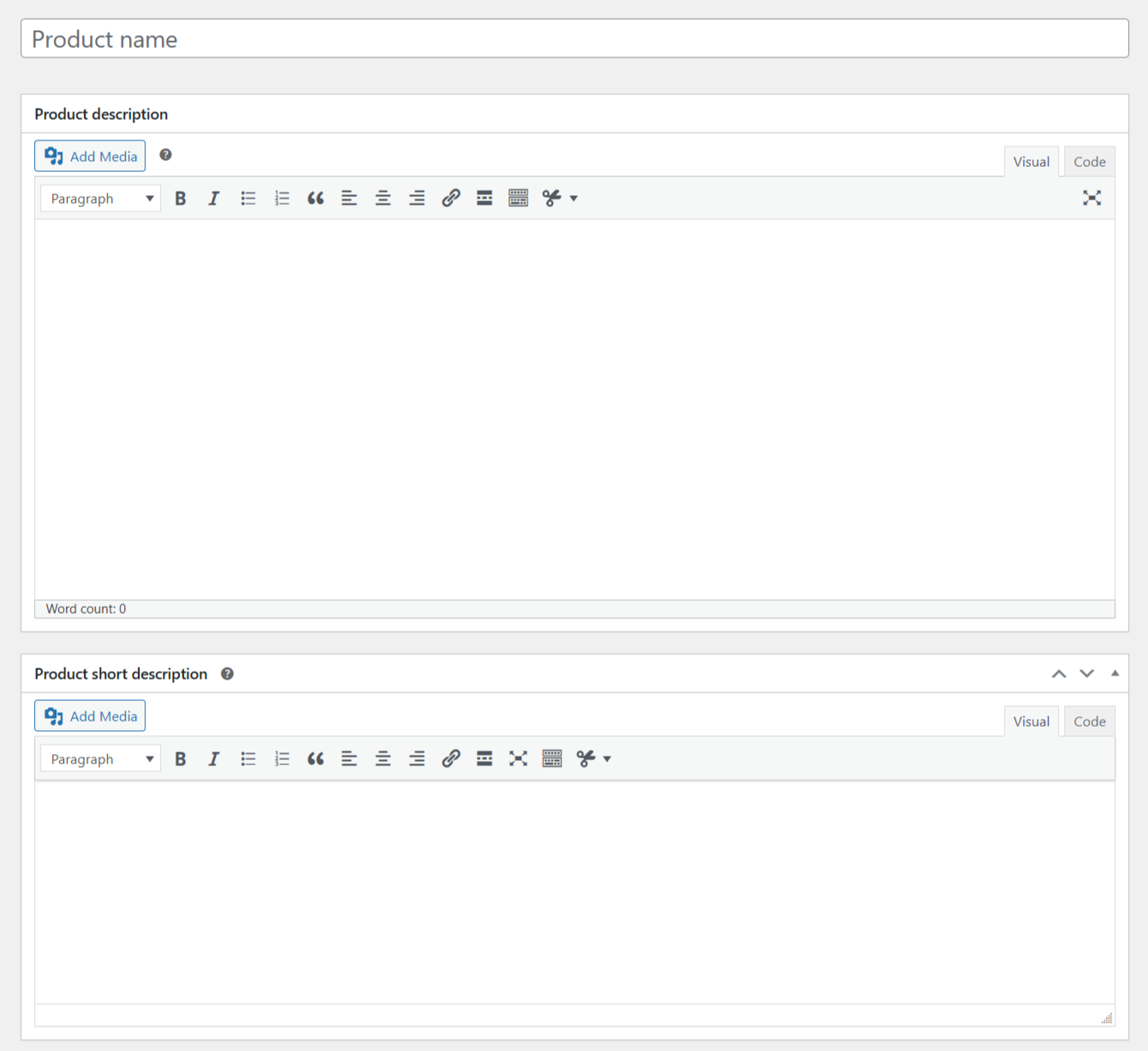
Step 2: Enter Product Details
Fill in the basic product information:
Product Name – Enter the product title.
Product Description – Main description displayed on the product page.
Product Short Description – Shown near the product price (optional).
In the Product data section:

Product Type
Simple product – A single product with no variations.
Variable product – Products with variations (size, color, etc.).
Grouped / External product – Optional advanced types.

General
Regular price – Standard selling price.
Sale price (optional) – Discounted price.

Inventory
Enable Manage stock if you want WooCommerce to track quantity.
Enter Stock quantity.
Set Stock status (In stock / Out of stock).

Shipping (optional)
Enter Weight and Dimensions.
Assign a Shipping class if applicable.

Set Product Image
On the right panel, click Set product image.
Upload or select an image.
Click Set product image.
Add Product Gallery
Add additional images to showcase the product from different angles.
💡 Tip: Use clear, high-quality images for better conversions.