HOME

ABOUT US

OUR PROJECT

CONTACT US

SUPPORT

Create Voucher Code

Introduction

This guide explains how to create a voucher code (coupon) in WooCommerce. Voucher codes allow you to offer discounts such as percentage off, fixed amount off, or free shipping to customers.

Before You Start

Make sure:

  1. You have Administrator or Shop Manager access.

  2. WooCommerce is installed and activated.

  3. Coupons are enabled in WooCommerce settings.

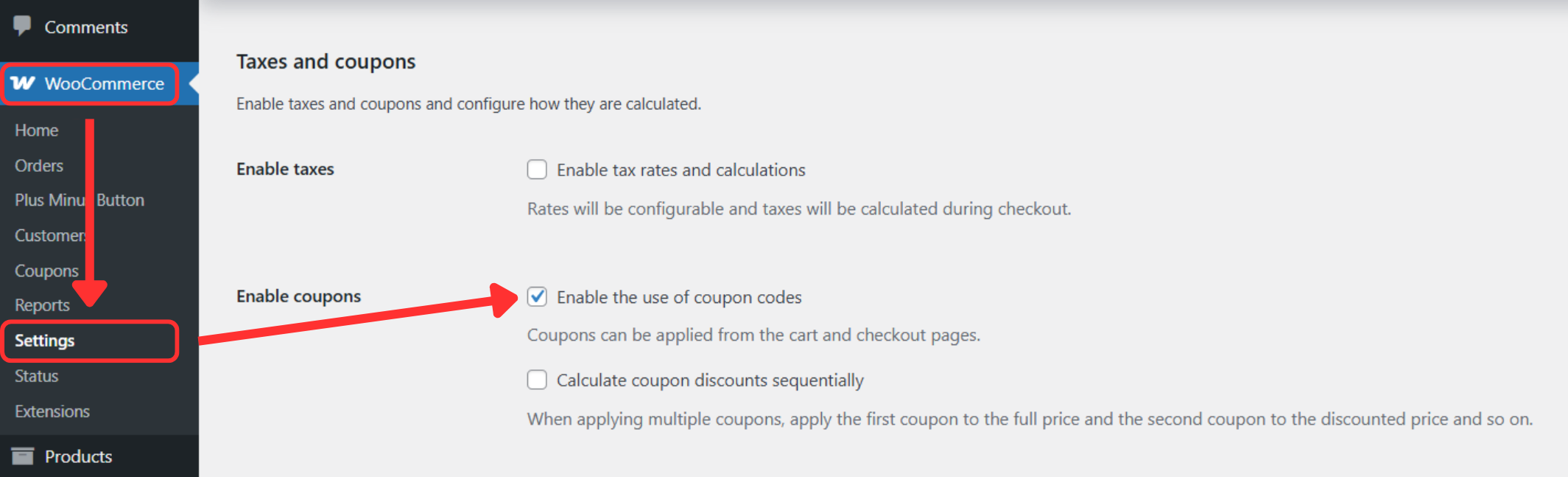
Enable Coupons (If Not Enabled)

  1. Go to WooCommerce → Settings.

  2. Click the General tab.

  3. Ensure Enable coupons is checked.

  4. Click Save changes.

Create a New Voucher Code

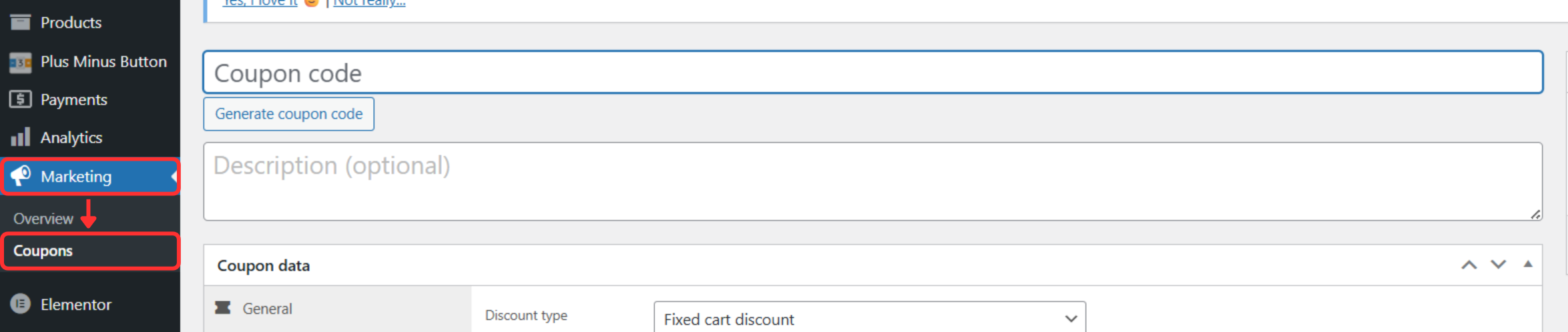
Step 1: Go to Coupons

  1. From the left sidebar, click Marketing.

  2. Select Coupons.

  3. Click Add coupon.

Step 2: Enter Voucher Code

  1. Enter the Coupon code (e.g. WELCOME10).

  2. Add a Description (optional, for internal reference).

Configure Voucher Settings

General

  • Discount type

    • Percentage discount

    • Fixed cart discount

    • Fixed product discount

  • Coupon amount – Enter the discount value.

  • Allow free shipping (optional)

  • Coupon expiry date (optional)

Usage Restriction

  • Set Minimum / Maximum spend.

  • Restrict usage to specific products or categories.

  • Exclude sale items if needed.

  • Restrict usage by email addresses (optional).

Usage Limits

  • Usage limit per coupon – Total number of uses.

  • Usage limit per user – Limit per customer.

Publish Voucher Code
  1. Review all settings.

  2. Click Publish.

✅ Your voucher code is now active and ready to use.

Test the Voucher Code
  1. Add a product to cart.
  2. Enter the voucher code during checkout.
  3. Confirm the discount is applied correctly.
Common Issues
  1. Voucher code not working
    → Check expiry date, usage limits, and restrictions.

  2. Discount not applied
    → Ensure minimum spend and product conditions are met.

  3. Coupon field missing at checkout
    → Check WooCommerce checkout settings.

2