
Step 1: Go to Product List
From the left sidebar, click Products.
Select All Products.
Find the product you want to edit.

Step 2: Edit the Product
Hover over the product name.
Click Edit.
You will be taken to the product editing page.
You can edit the following sections:
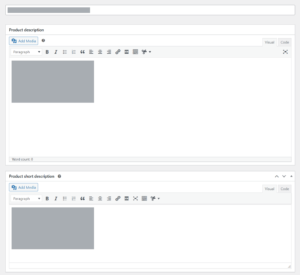
Product Title & Description
Product Name – Update the product title.
Product Description – Main content shown on the product page.
Product Short Description – Appears near the price (optional).
Product Data Section
General
Update Regular price and Sale price.
Inventory
Enable or disable Manage stock.
Update Stock quantity.
Change Stock status (In stock / Out of stock).
Shipping
Update Weight, Dimensions, or Shipping class if needed.
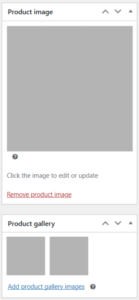
Product Image
Click on the current product image.
Replace or remove the image.
Click Set product image.
Product Gallery
Add or remove additional product images.
💡 Tip: After updating images, clear your cache to ensure changes appear correctly.