Switching Desktop & Mobile View
Introduction
This guide explains how to switch between Desktop, Tablet, and Mobile view modes in Elementor. These modes allow you to preview and adjust your page layout for different screen sizes.
Before You Start
Make sure:
You have Administrator or Editor access.
Elementor is installed and activated.
The page you want to edit already exists.
Open Page in Elementor
Step 1: Edit Page with Elementor
Navigate to Pages → All Pages.
Hover over the page you want to edit.
Click Edit with Elementor.
Switch Between View Modes

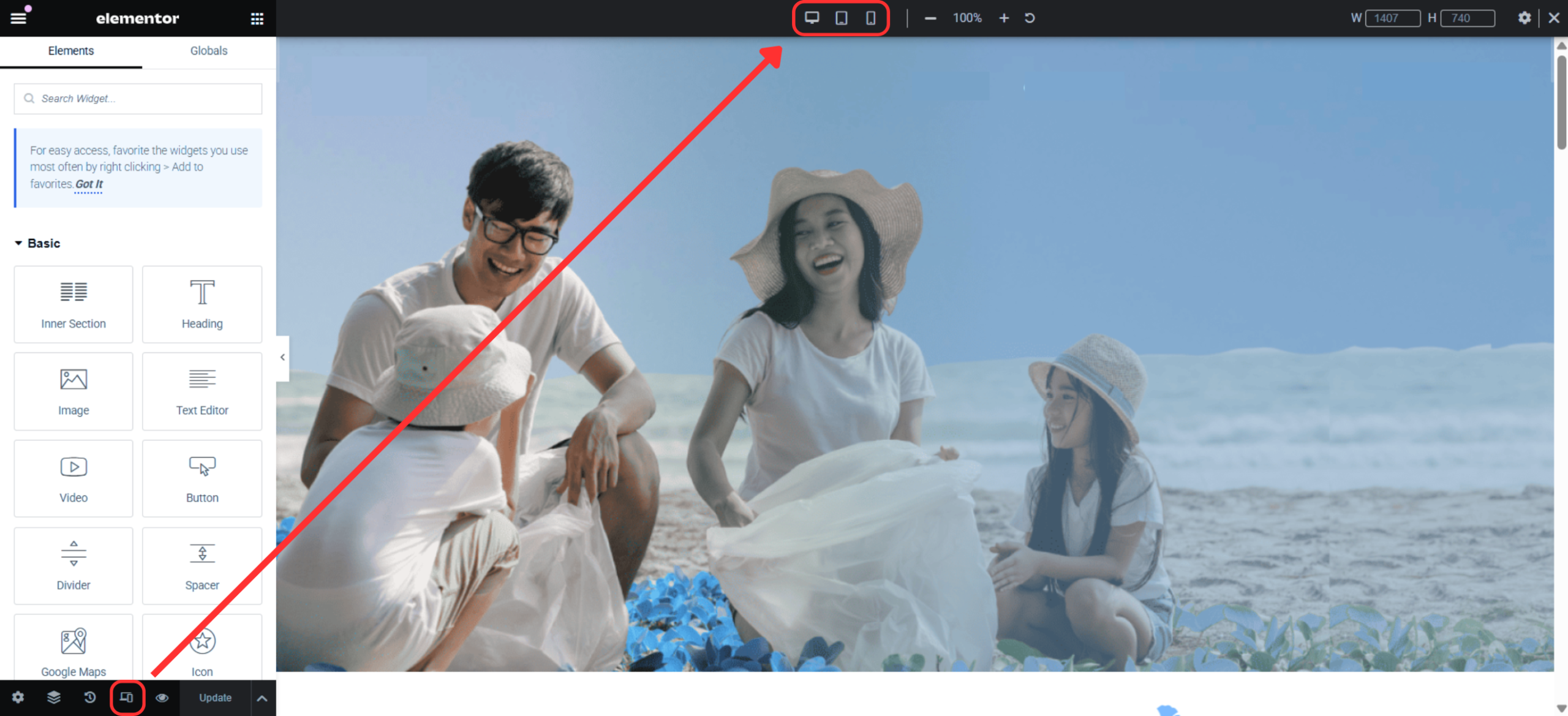
Step 1: Use Responsive Mode Icons
Look at the bottom of the Elementor panel.
You will see three icons:
🖥️ Desktop
📱 Tablet
📱 Mobile
Click on any icon to switch to that view mode.
The page preview will update instantly to match the selected device.
Edit Content for Mobile or Tablet
When in Tablet or Mobile mode:
Adjust font sizes, padding, and margins.
Hide or show widgets specifically for certain devices.
Reorder sections if needed.
💡 Tip: Changes marked with a device icon only affect that device view.
Switch Baack to Desktop Mode
Click the Desktop icon at the bottom of the panel.
Continue editing the desktop layout as usual.
Save Changes
Click Update.
Preview your page on actual devices if possible.
✅ Your responsive edits have been saved successfully.