
1. Introduction
Welcome! This guide will walk you through how to log into your website quickly and securely. You’ll learn the correct steps to access your dashboard, what to do if you forget your password, and how to stay secure when signing in.
Logging in is the first step to managing your store, inventory, orders, and settings — so let’s get you in!
2. How to Login
Step 1: Visit the Login Page
Open your web browser.
Go to the official login portal.

Step 2: Enter Your Credentials
In the Username field, type your username.
In the Password field, type your secure password.
Click Login to continue
💡 Tip: Make sure there are no extra spaces before or after your email or password — that’s a super common login snare!
3. Forgot Your Password?
If you can’t remember your password, follow these steps:

Step 1: On the login page, click Forgot Password?

Step 2: Enter your registered email address.
Step 3: A reset link will be sent to your email.
Step 4: Open that email and follow the instructions to create a new password.
4. Stay Secure While Logging In
Always log in from a trusted device.
Avoid public Wi-Fi for sensitive access.
Update your password regularly.
Never share your password with someone you don’t trust.
1. Introduction
This guide explains how to replace images using Elementor in WordPress. You can update images on any page or section without affecting the layout or design.
2. Before You Start
Make sure:
You have Administrator or Editor access.
Elementor is installed and activated.
The page containing the image already exists.
3. Replace an Image Widget

Step 1: Select the Image
Click directly on the image you want to replace.
The Elementor panel will appear on the left.
Step 2: Replace the Image
In the Content tab, find the Image field.
Click on the image thumbnail.
Choose:
Upload Files to upload a new image, or
Media Library to select an existing image.
Click Insert Media.
✅ The image will be replaced instantly on the page.
4. Replace Background Images
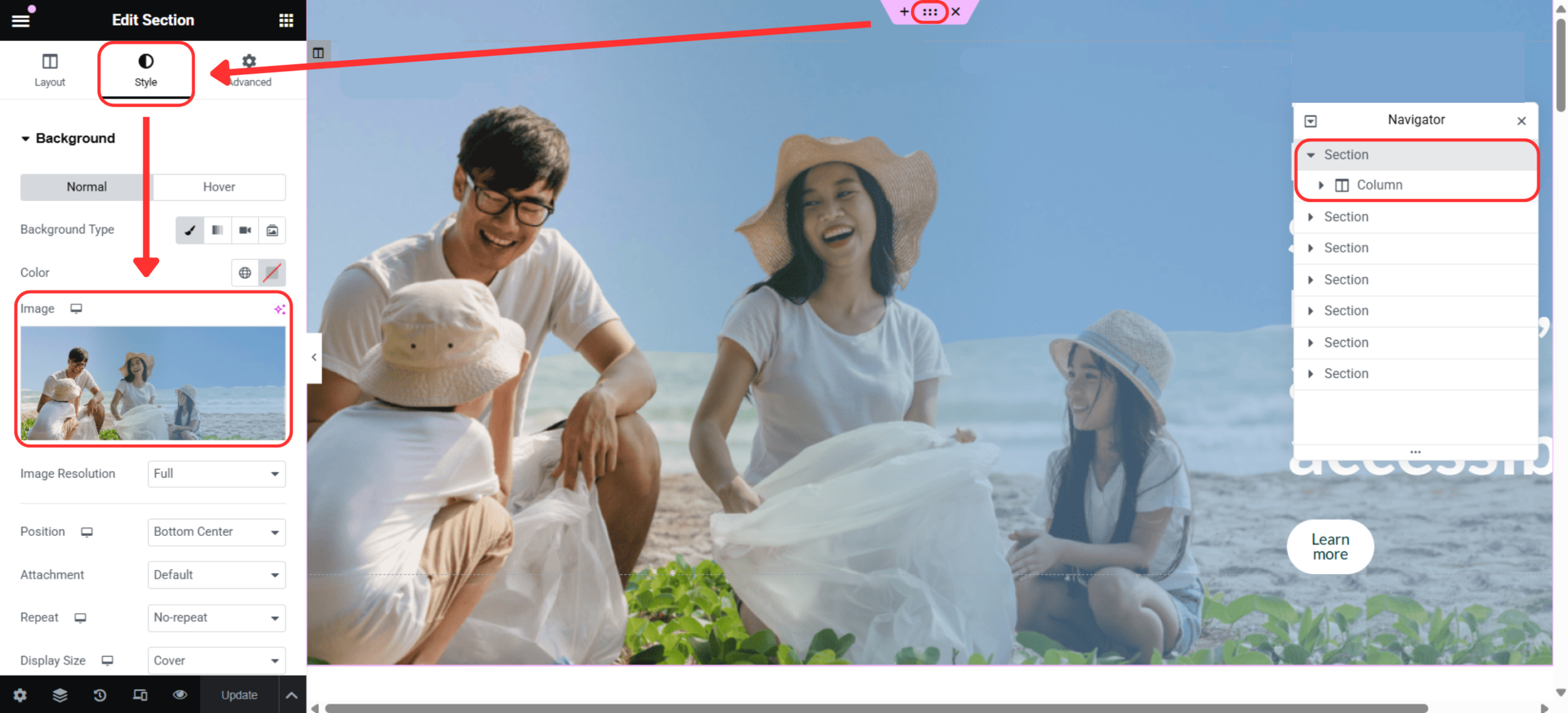
Step 1: Edit Section / Column
Click the Section (6 dots) or Column icon.
Go to the Style tab.
Select Background.
Replace the image under Background Image.
5. Replace Images in Image Carousel
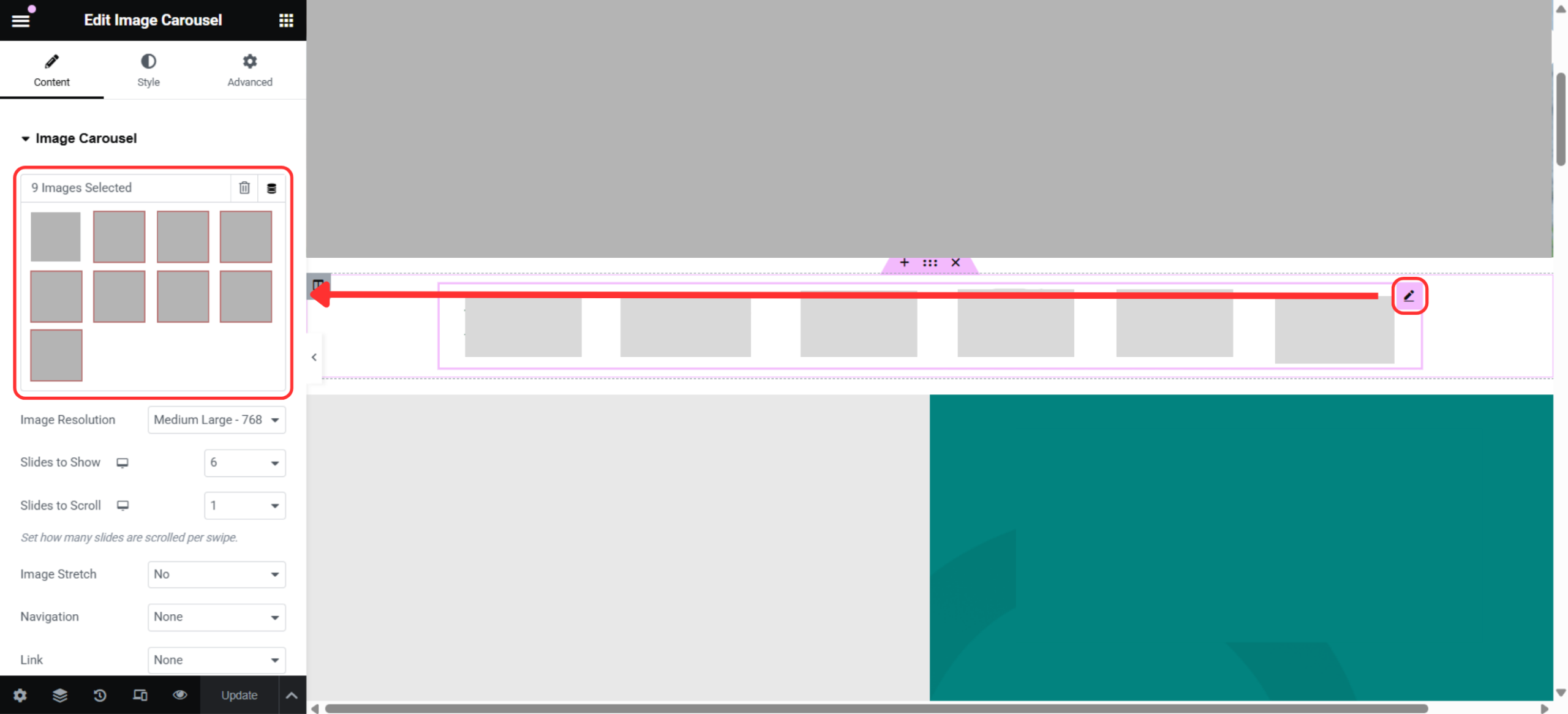
Step 1: Select the Image Carousel Widget
Click on the Image Carousel widget.
The Elementor settings panel will open on the left.
Step 2: Replace Carousel Images
Under the Content tab, locate the Images section.
You will see a list of images used in the carousel.
Click on an image you want to replace.
Choose:
Replace Image to upload a new image, or
Media Library to select an existing image.
Click Insert Media.
Repeat these steps for each image you want to replace.
Add or Remove Carousel Images (Optional)
Add Image: Click Add Item to insert a new image into the carousel.
Remove Image: Click the X icon next to the image you want to delete.
Reorder Images: Drag and drop images to change their order.
1. Introduction
Categories help you organize your content in WordPress, making it easier for users to navigate your website and for you to manage posts efficiently.
This guide will show you how to create, edit, and manage categories in WordPress using the admin dashboard.
2. What Are Categories?
Categories are used to group related posts together.
For example:
News
Promotions
Tutorials
Announcements
Each post can belong to one or more categories, helping structure your website content clearly.
3. How to Create a Category
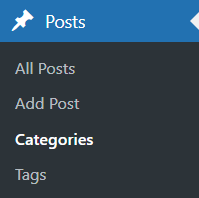
Step 1: Navigate to Categories
From the left sidebar, click Posts.
Select Categories.

Step 2: Add a New Category
On the Add New Category section:
Name – Enter the category name (e.g. Blog, Product Updates).
Slug (optional) – Auto-generated if left blank.
Parent Category (optional) – Select a parent if this is a sub-category.
Description (optional) – Used by some themes for display.
Click Add New Category to save. Your new category will appear in the list on the right.
4. Assign a Category to a Post
To apply a category to a post:
Go to Posts → All Posts.
Click Edit on the post you want to update.
In the Categories panel (right sidebar), tick the relevant category.
Click Update or Publish.

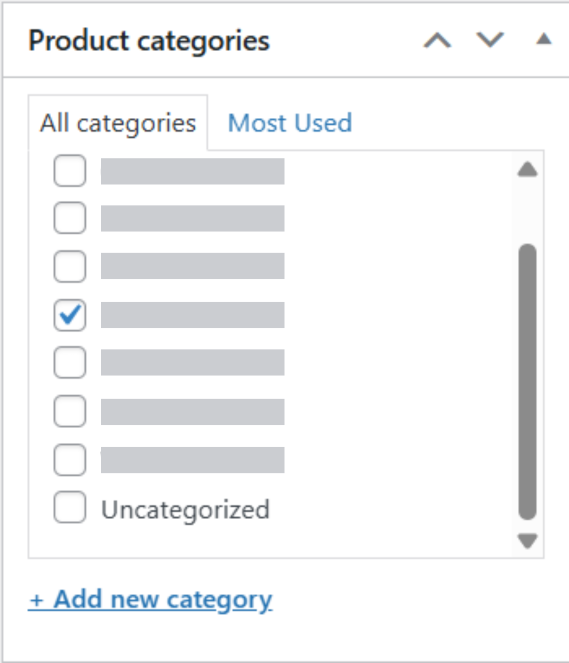
💡 Tip: You can assign multiple categories to a single post if needed.
5. Edit or Delete a Category

To manage existing categories:
Go to Posts → Categories.
Hover over a category name.
Click:
Edit – Change name, slug, or description.
Quick Edit – Edit basic info quickly.
Delete – Remove the category.
Deleting a category will not delete posts — they will be reassigned to Uncategorized.
1. Introduction
This guide explains how to create a new product in WooCommerce using the WordPress admin dashboard. Once added, your product will appear in your online store and be available for customers to purchase.
2. Before You Start
Make sure:
You have Administrator or Shop Manager access.
WooCommerce is installed and activated.
Product categories (optional) are already created.
3. How to Create a New Product

Step 1: Go to Products
From the left sidebar, click Products.
Select Add New.
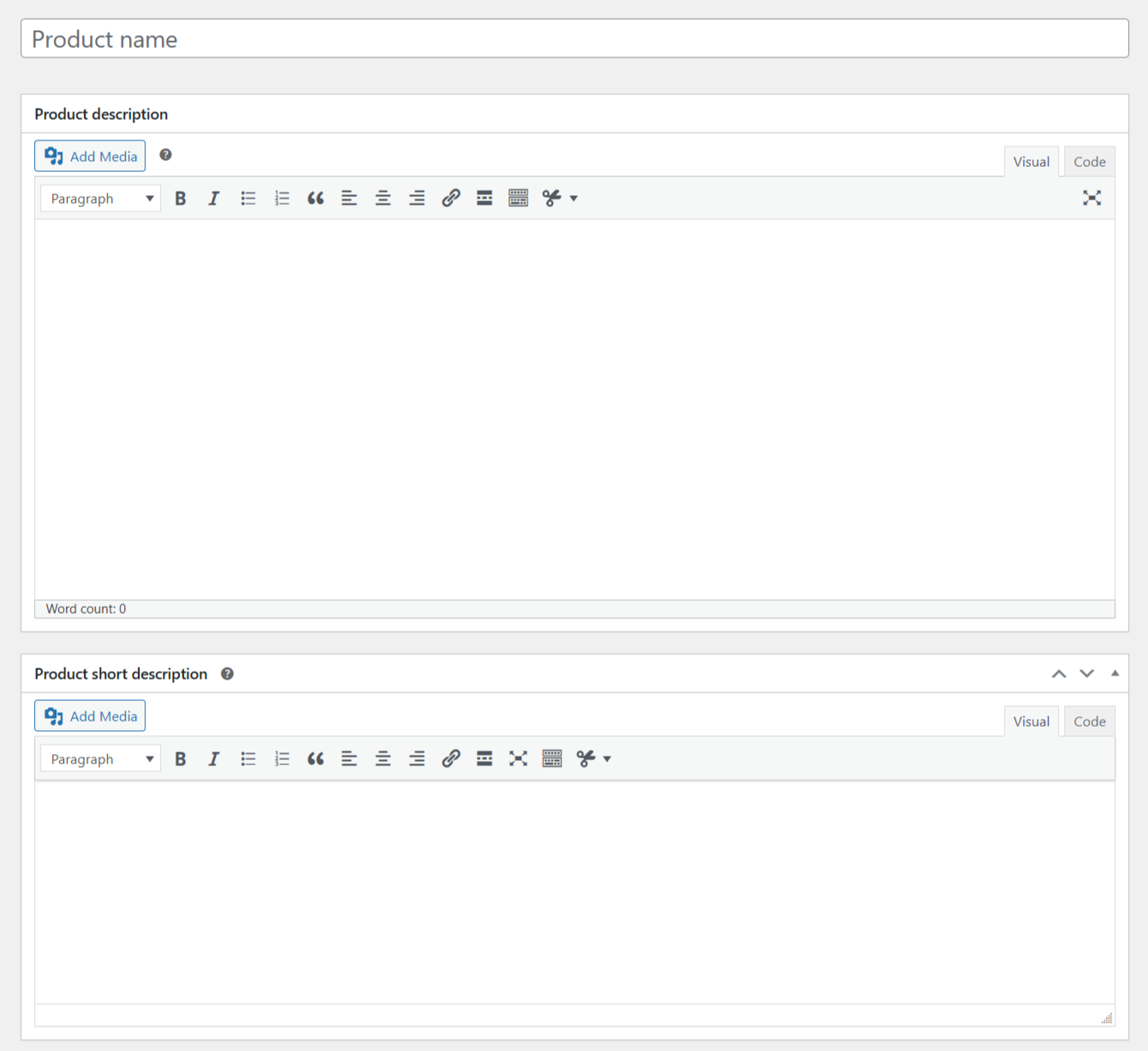
Step 2: Enter Product Details
Fill in the basic product information:
Product Name – Enter the product title.
Product Description – Main description displayed on the product page.
Product Short Description – Shown near the product price (optional).
4. Product Data Settings
In the Product data section:

Product Type
Simple product – A single product with no variations.
Variable product – Products with variations (size, color, etc.).
Grouped / External product – Optional advanced types.

General
Regular price – Standard selling price.
Sale price (optional) – Discounted price.

Inventory
Enable Manage stock if you want WooCommerce to track quantity.
Enter Stock quantity.
Set Stock status (In stock / Out of stock).

Shipping (optional)
Enter Weight and Dimensions.
Assign a Shipping class if applicable.
5. Product Images

Set Product Image
On the right panel, click Set product image.
Upload or select an image.
Click Set product image.
Add Product Gallery
Add additional images to showcase the product from different angles.
💡 Tip: Use clear, high-quality images for better conversions.
1. Introduction
This guide explains how to edit an existing product listing in WooCommerce. You can update product details such as price, description, images, stock, and categories at any time through the WordPress dashboard.
2. Before You Start
Make sure:
You have Administrator or Shop Manager access.
The product already exists in WooCommerce.
WooCommerce is active.
3. How to Edit a Product Listing
Step 1: Go to Product List
From the left sidebar, click Products.
Select All Products.
Find the product you want to edit.

Step 2: Edit the Product
Hover over the product name.
Click Edit.
You will be taken to the product editing page.
4. Update Product Information
You can edit the following sections:
Product Title & Description
Product Name – Update the product title.
Product Description – Main content shown on the product page.
Product Short Description – Appears near the price (optional).
Product Data Section
General
Update Regular price and Sale price.
Inventory
Enable or disable Manage stock.
Update Stock quantity.
Change Stock status (In stock / Out of stock).
Shipping
Update Weight, Dimensions, or Shipping class if needed.
5. Edit Product Images
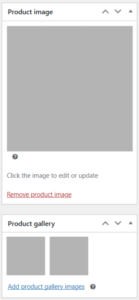
Product Image
Click on the current product image.
Replace or remove the image.
Click Set product image.
Product Gallery
Add or remove additional product images.
💡 Tip: After updating images, clear your cache to ensure changes appear correctly.
6. Save Your Changes
After editing:
Review the updated information.
Click Update.
✅ Your product listing will be updated immediately on the store.
1. Introduction
This guide explains how to switch between Desktop, Tablet, and Mobile view modes in Elementor. These modes allow you to preview and adjust your page layout for different screen sizes.
2. Before You Start
Make sure:
You have Administrator or Editor access.
Elementor is installed and activated.
The page you want to edit already exists.
3. Open Page in Elementor
Step 1: Edit Page with Elementor
Navigate to Pages → All Pages.
Hover over the page you want to edit.
Click Edit with Elementor.
4. Switch Between View Modes
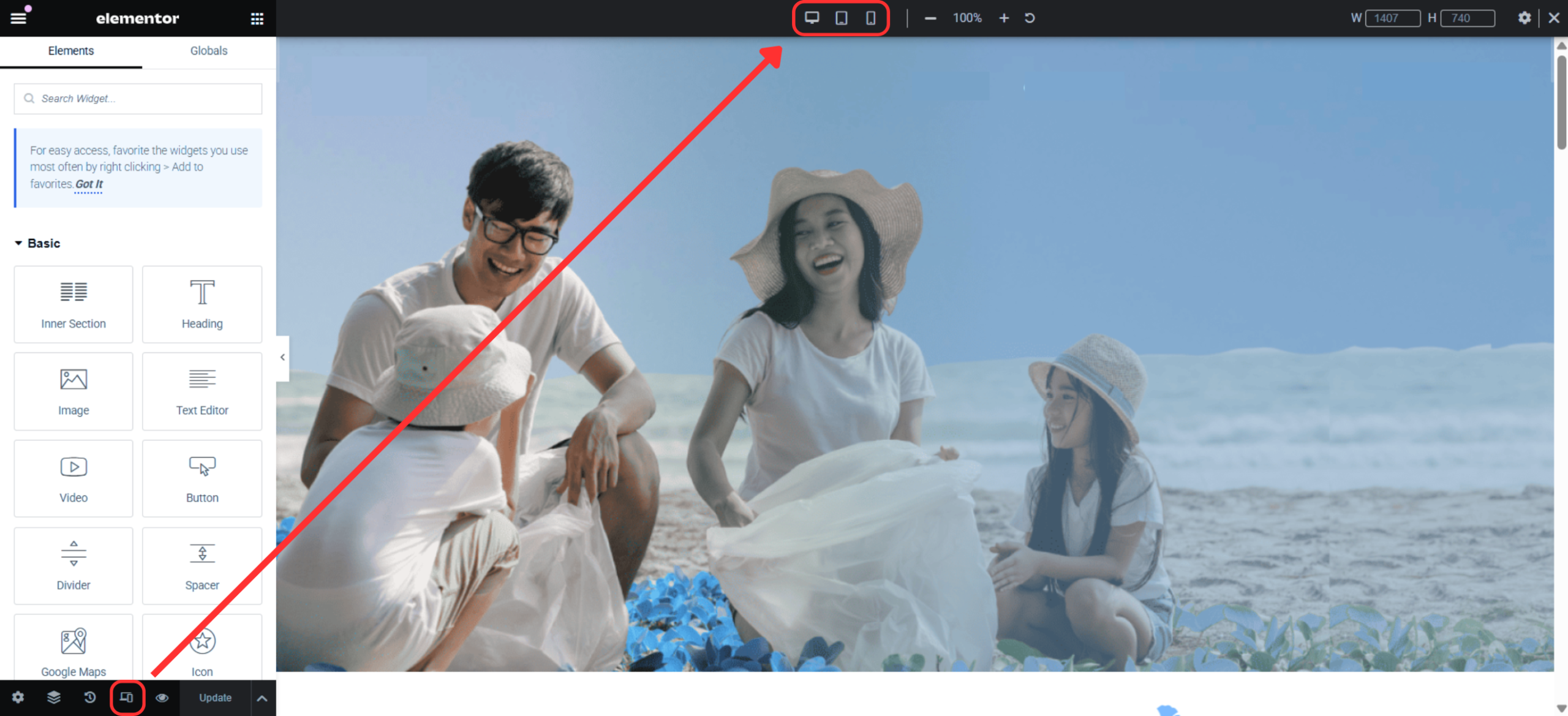
Step 1: Use Responsive Mode Icons
Look at the bottom of the Elementor panel.
You will see three icons:
🖥️ Desktop
📱 Tablet
📱 Mobile
Click on any icon to switch to that view mode.
The page preview will update instantly to match the selected device.
5. Edit Content for Mobile or Tablet
When in Tablet or Mobile mode:
Adjust font sizes, padding, and margins.
Hide or show widgets specifically for certain devices.
Reorder sections if needed.
💡 Tip: Changes marked with a device icon only affect that device view.
6. Switch Back to Desktop Mode
Click the Desktop icon at the bottom of the panel.
Continue editing the desktop layout as usual.
7. Save Changes
Click Update.
Preview your page on actual devices if possible.
✅ Your responsive edits have been saved successfully.
1. Introduction
This guide explains how to add or edit FAQ sections in Elementor. FAQ sections help users quickly find answers and improve your website’s usability.
2. Before You Start
Make sure:
You have Administrator or Editor access.
Elementor is installed and activated.
3. Edit Existing FAQ
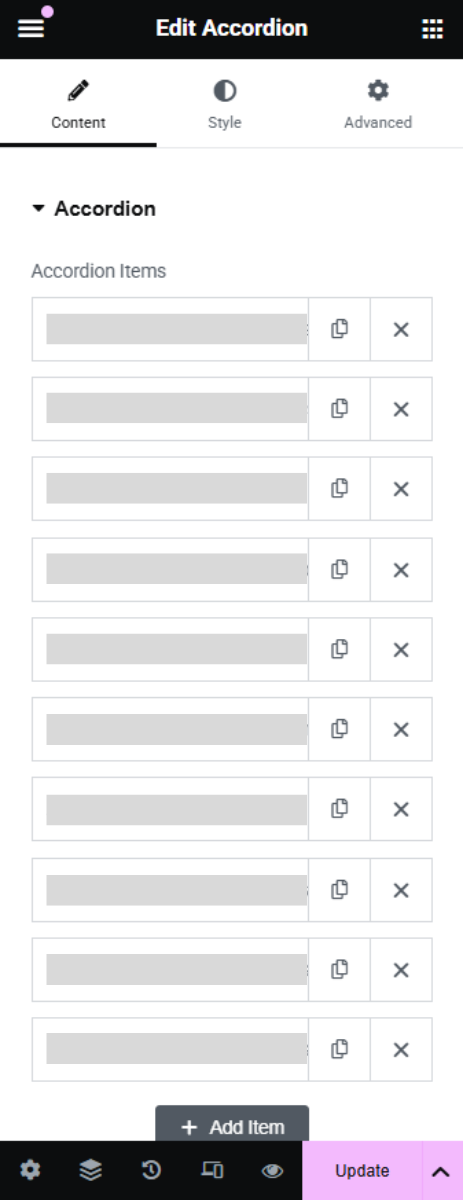
Click on the Accordion widget.
In the Content tab, hover over the FAQ item you want to edit.
Update the Title (question) or Content (answer).
You can also:
Reorder items by dragging them up or down.
Delete an item by clicking the ❌ icon.
1. Introduction
This guide explains how to edit content using Elementor in WordPress. You can update text, buttons, and other page content without changing the page layout or images.
2. Before You Start
Make sure:
You have Administrator or Editor access.
Elementor is installed and activated.
The page you want to edit already exists.
3. Open Page in Elementor
Step 1: Edit Page with Elementor
Navigate to Pages → All Pages
Hover over the page you want to edit.
Click Edit with Elementor.
4. Edit Text Content

Step 1: Select Text Widget
Click on the text you want to edit (Heading, Text Editor, Button, etc.).
The Elementor settings panel will appear on the left.
Step 2: Update Text
Under the Content tab, edit the text directly.
Changes will appear instantly on the page preview.
5. Edit Buttons
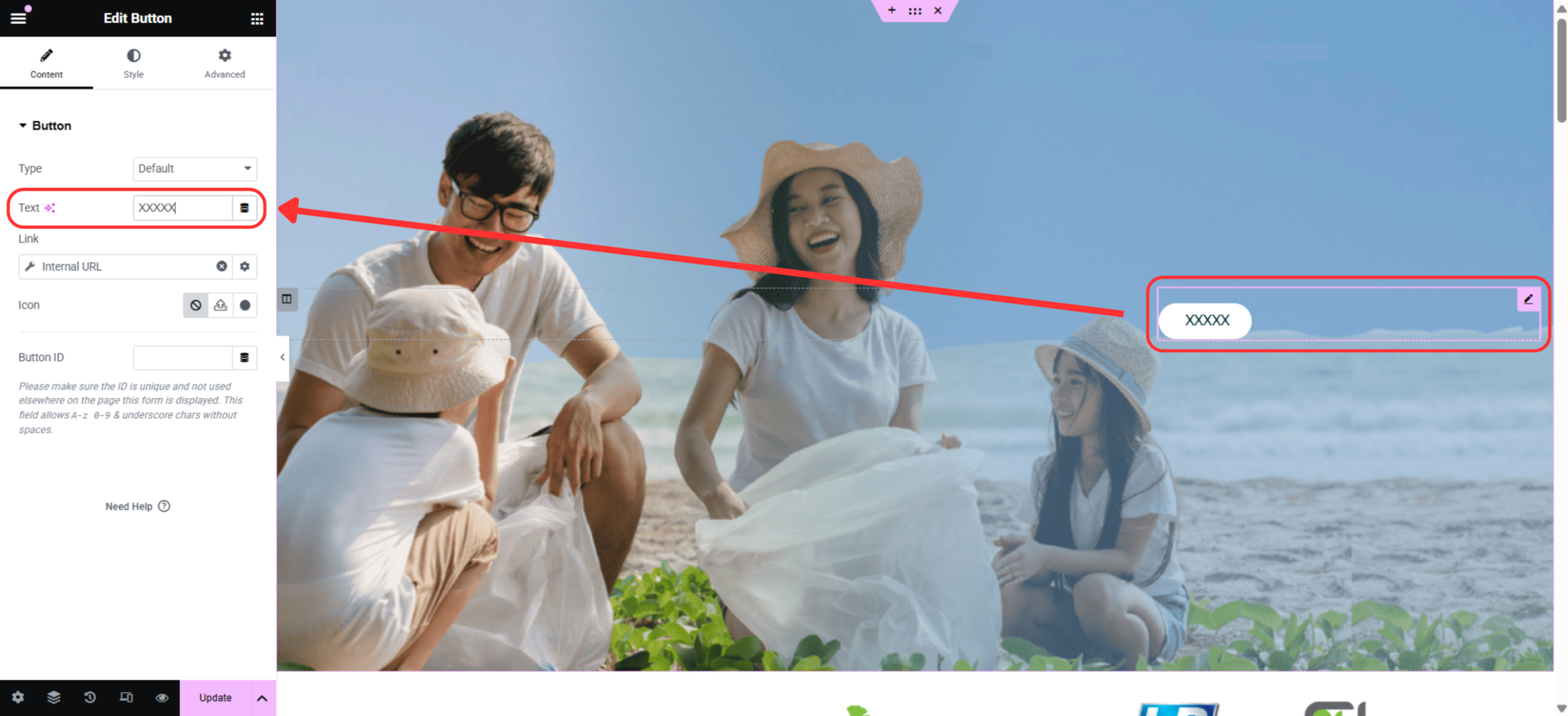
Click the Button widget.
Update Button text
Click Update to save changes.
1. Introduction
This guide explains how to create a voucher code (coupon) in WooCommerce. Voucher codes allow you to offer discounts such as percentage off, fixed amount off, or free shipping to customers.
2. Before You Start
Make sure:
You have Administrator or Shop Manager access.
WooCommerce is installed and activated.
Coupons are enabled in WooCommerce settings.
3. Enable Coupons (If Not Enabled)
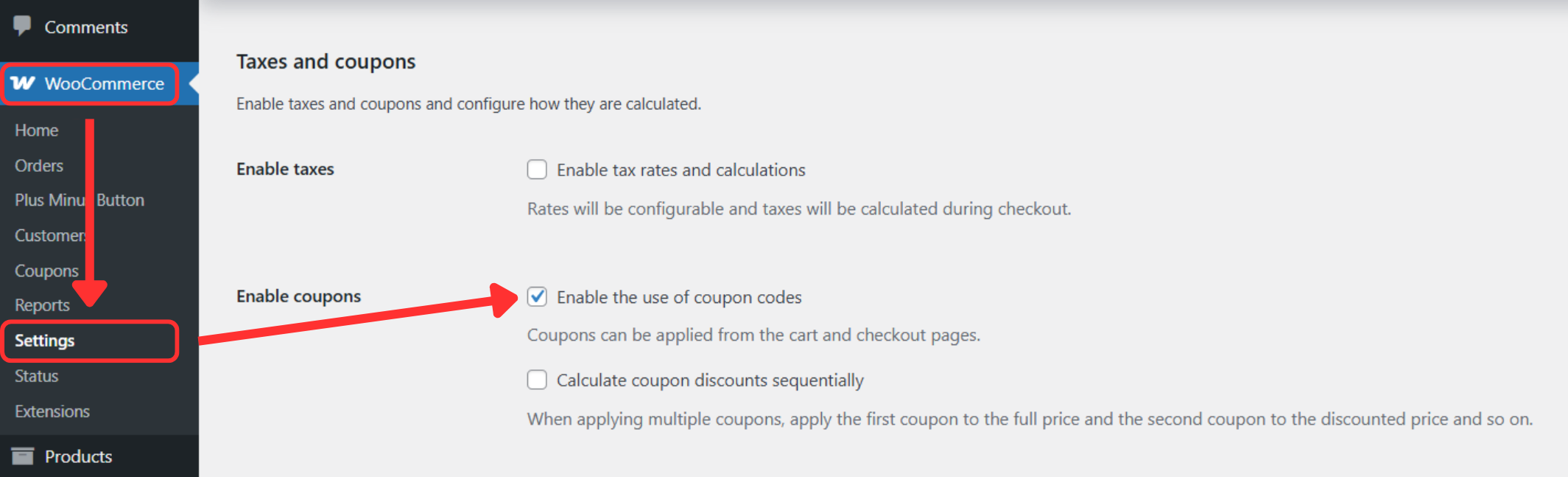
Go to WooCommerce → Settings.
Click the General tab.
Ensure Enable coupons is checked.
Click Save changes.
4. Create a New Voucher Code
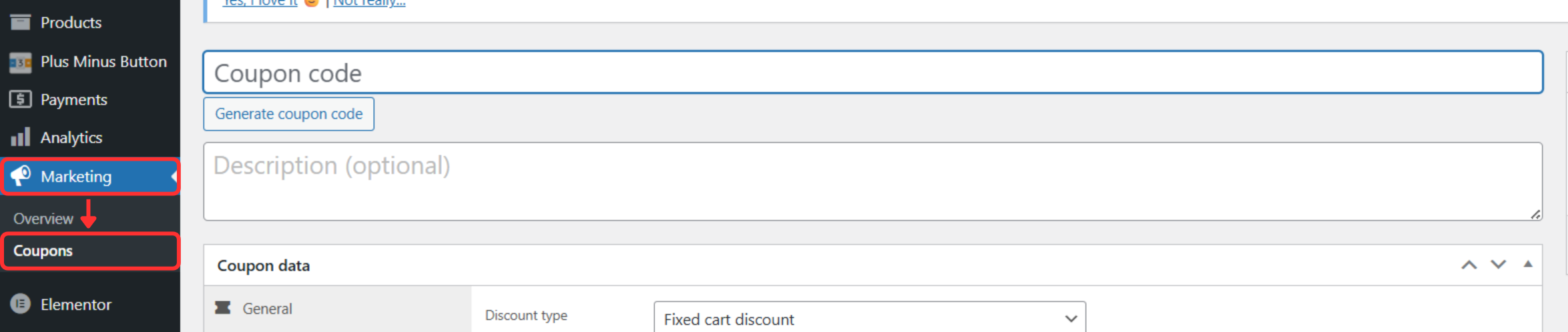
Step 1: Go to Coupons
From the left sidebar, click Marketing.
Select Coupons.
Click Add coupon.
Step 2: Enter Voucher Code
Enter the Coupon code (e.g.
WELCOME10).Add a Description (optional, for internal reference).
5. Configure Voucher Settings
General
Discount type
Percentage discount
Fixed cart discount
Fixed product discount
Coupon amount – Enter the discount value.
Allow free shipping (optional)
Coupon expiry date (optional)
Usage Restriction
Set Minimum / Maximum spend.
Restrict usage to specific products or categories.
Exclude sale items if needed.
Restrict usage by email addresses (optional).
Usage Limits
Usage limit per coupon – Total number of uses.
Usage limit per user – Limit per customer.
6. Publish Voucher Code
Review all settings.
Click Publish.
✅ Your voucher code is now active and ready to use.
7. Test the Voucher Code
Add a product to cart.
Enter the voucher code during checkout.
Confirm the discount is applied correctly.
8. Common Issues
Voucher code not working
→ Check expiry date, usage limits, and restrictions.Discount not applied
→ Ensure minimum spend and product conditions are met.Coupon field missing at checkout
→ Check WooCommerce checkout settings.
1. Introduction
This guide explains how to check your order status after placing an order on the website. You can review order details, payment status, and delivery updates directly from your account.
2. Before You Start
Make sure:
You have successfully placed an order.
You are logged in using the same email or account used during checkout.
You have your order number (if checking without login).
3. Check Order While Logged In
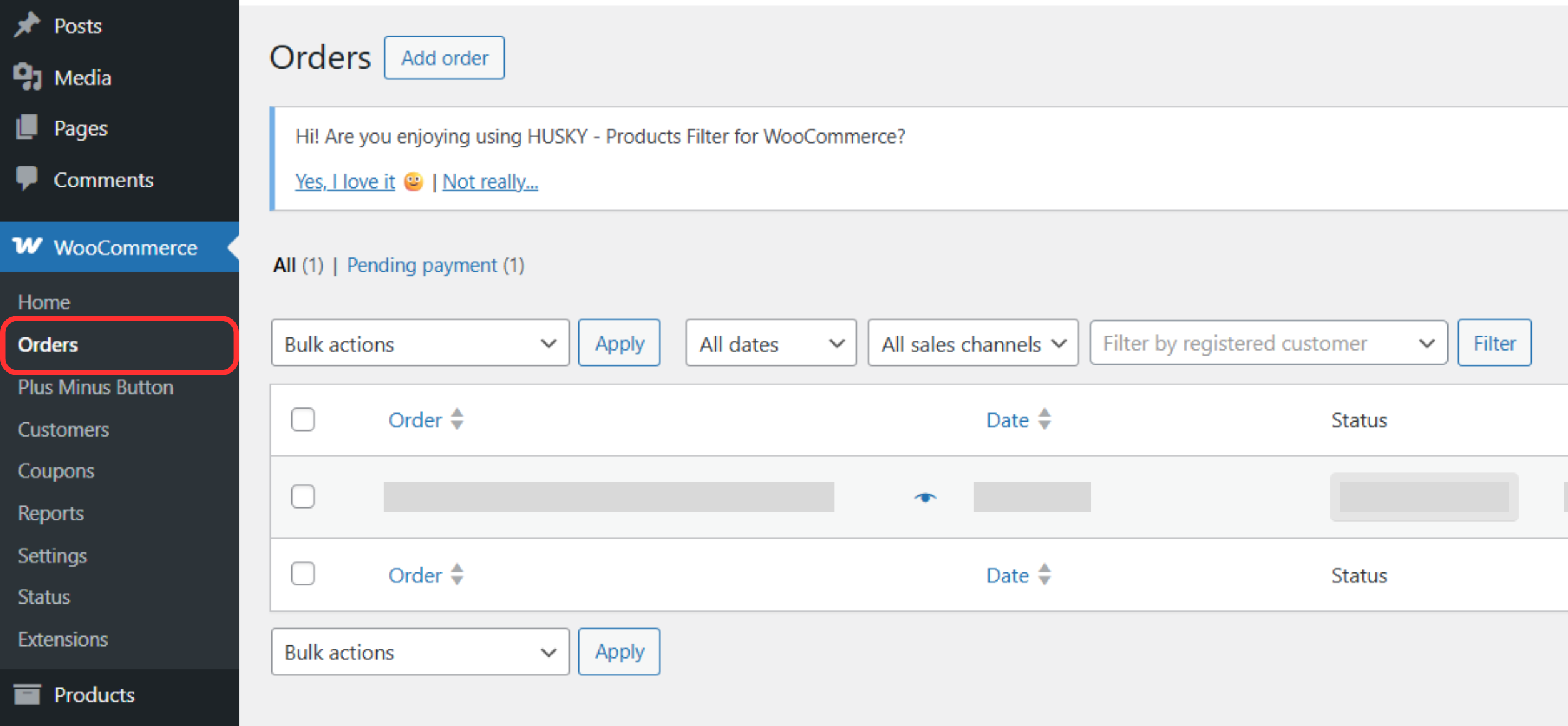
Step 1: View Orders
Go to WooCommerce → Orders.
A list of your recent orders will be displayed.
Step 3: Check Order Details
Click on the order you want to check.
You can see:
Order number
Order status (Processing, Completed, On Hold, Cancelled)
Items purchased
Payment method
Shipping address
Order total
1. Introduction
This guide explains how to create product variations in WooCommerce. Variations allow you to sell a product with different options such as size, color, material, or style, all under one product listing.
2. Before You Start
Make sure:
You have Administrator or Shop Manager access.
WooCommerce is installed and activated.
The product already exists.
You understand the variation options you want to offer (e.g. Size: S, M, L).
2. Access Attributes

From the WordPress dashboard, go to Products.
Click Attributes.
This page allows you to create parent attributes that will later be used for product variations.
3. Create a Parent Attribute
In the Name field, enter the attribute name
Example: Color, SizeLeave other settings as default unless customization is needed.
Click Add attribute.
The attribute will now appear in the attributes list on the right.
4. Add Attribute Terms (Variations)
In the attributes list, locate the attribute you just created.
Click Configure terms.
This will open the page where you add variation options.
5. Create Variation Options
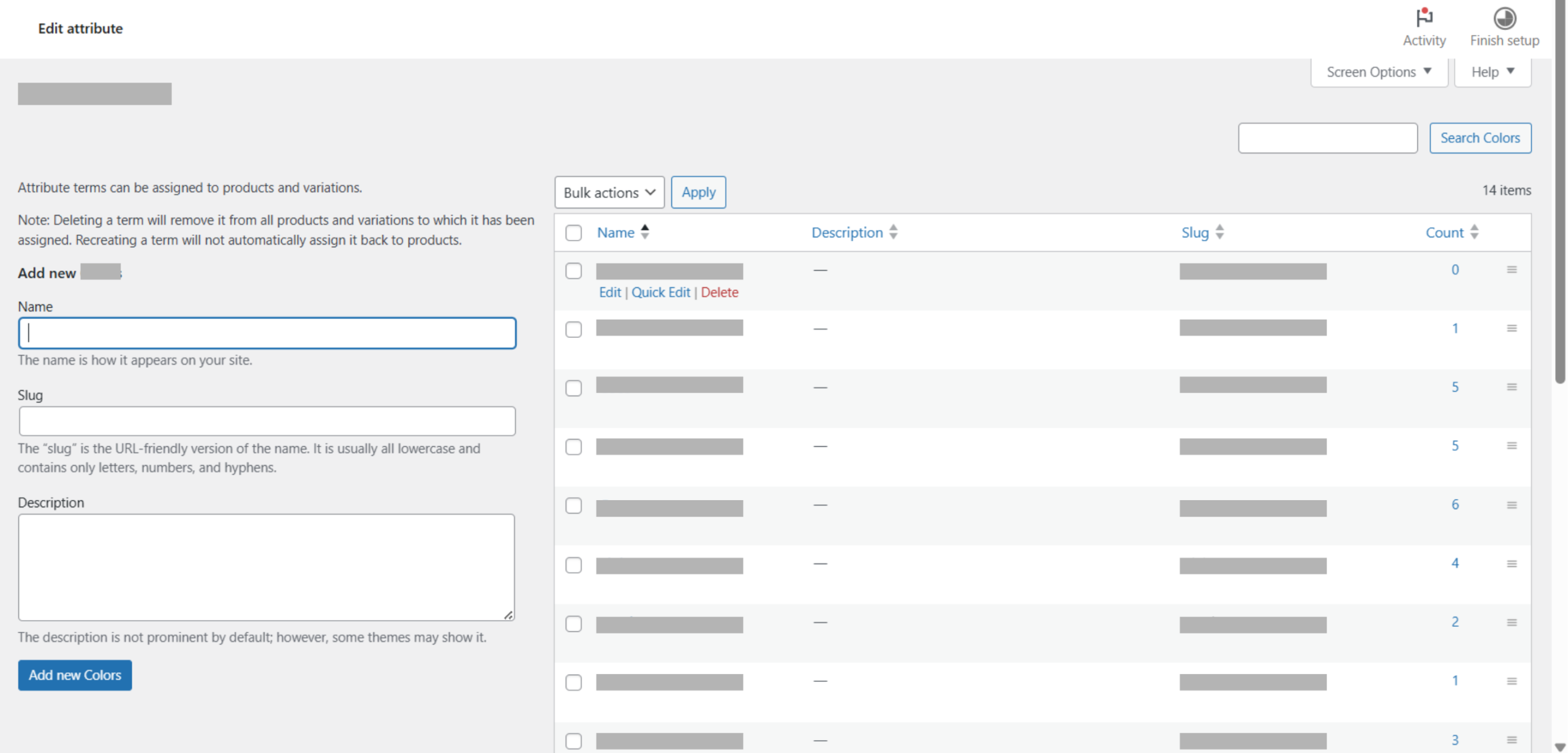
Enter the variation name
Example: Black, Beige, Blue(Optional) Fill in the slug or description.
Click Add new.
Repeat these steps to add more variation options under the same attribute.
6. Rearrange Variation Order
Drag the hamburger (≡) icon next to each variation to reorder them.
The order set here will be reflected on the product page.
1. Introduction
This guide explains how to add variations to a Variable Product in WooCommerce. Variations allow customers to select different options such as size, color, or style within a single product listing.
2. Before You Start
Make sure:
You have Administrator or Shop Manager access.
WooCommerce is installed and activated.
The product already exists and is set as a Variable product.
Product attributes (e.g. Size, Color) are ready to be used for variations.
Add Variations (Variable Product)
1. Open the Product for Editing
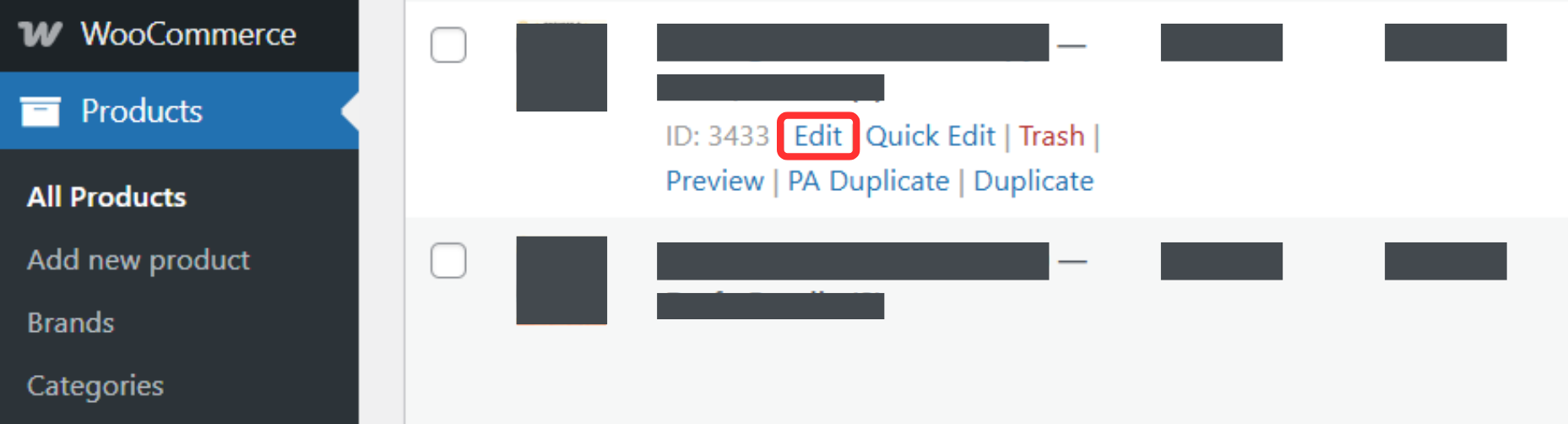
From the WordPress dashboard, click Products.
Select All Products.
Click Edit on the product you want to add variations to.
2. Switch Product Type
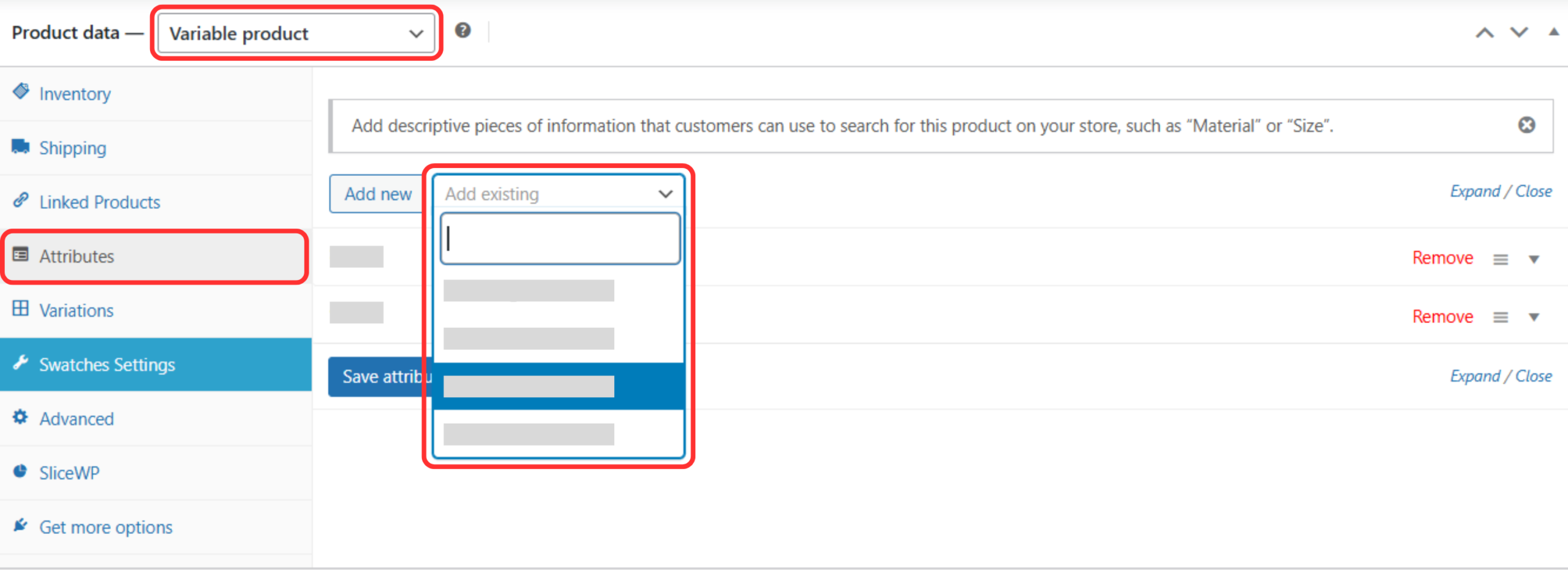
Scroll down to the Product data section.
From the dropdown, select Variable product.
3. Add Attributes to the Product
In Product data, click Attributes.
Click Add new.
Enter the Name
Example: Size, ColorEnter the Value, separated by a vertical bar
|
Example: S | M | L or Black | Beige | BlueTick Used for variations.
Click Save attributes.
4. Create Variations
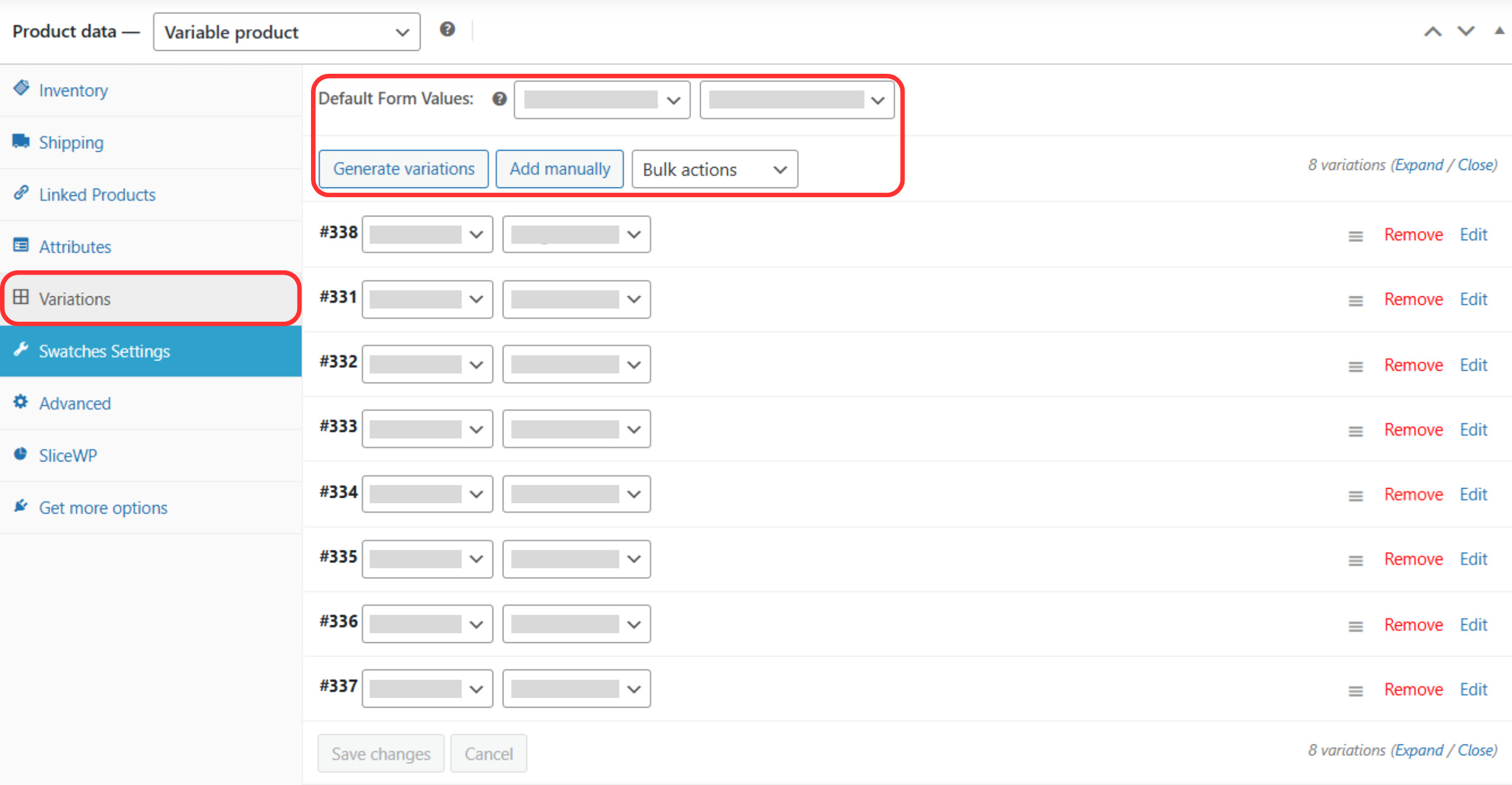
- Click the Variations tab.
Click the dropdown and choose:
Generate variations (auto-create), or
Add manually (create one by one)
Click Go if prompted.
5. Configure Each Variation
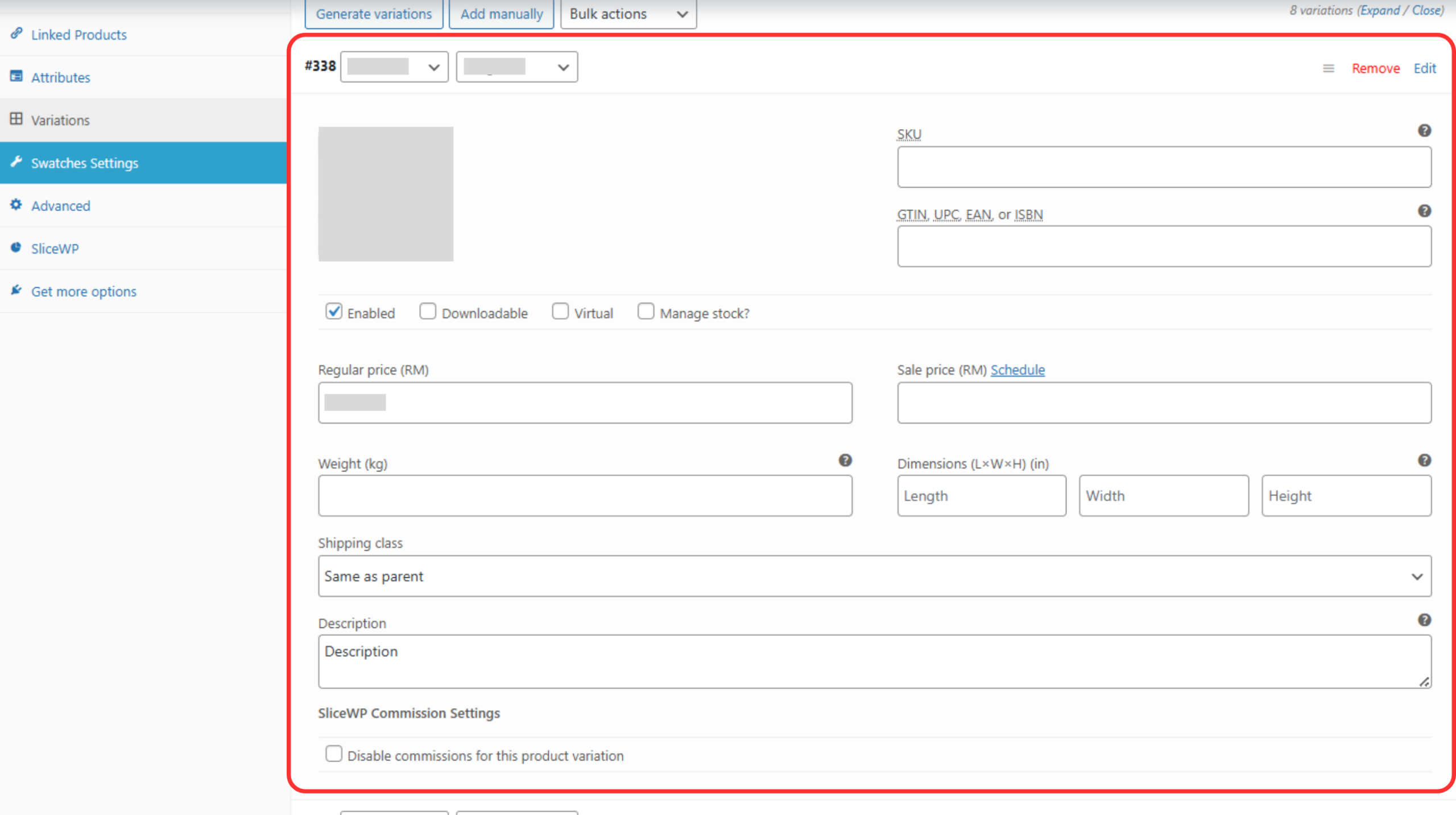
Expand a variation by clicking the arrow.
Fill in required details:
Price
Sale price (if any)
Stock status / stock quantity
Repeat for all variations.
6. Save Changes
Click Save changes inside the Variations tab.
Scroll back to the top.
Click Update to publish the changes.
1. Introduction
This guide explains how to check order reports in WooCommerce. Order reports allow you to review sales performance, order status, revenue, and trends over a selected period.
2. Before You Start
Make sure:
You have Administrator or Shop Manager access.
WooCommerce is installed and activated.
Orders have already been placed on the website.
3. Access Order Reports
Step 1: Open WooCommerce Reports
From the left sidebar, click WooCommerce.
Select Reports
(or Analytics, depending on your WooCommerce version).
4. View Order Reports
Click Orders.
Select a date range (Today, Last 7 Days, Last Month, Custom).
Review:
Total orders
Orders by status (Completed, Processing, Cancelled)
Net sales and totals